


Distance does something strange to music. It alters the mood of the music but not the song itself. Because the person you hoped to share it with isn’t there at that precise moment, a song that used to give you shivers now plays in silence.
In any case, you send a link. It waits in a chat. Perhaps they forget, or perhaps they play it hours later. It is never the same, even if they do pay attention. You felt a surge of emotion as you heard that. They hear it out of context. The link you were attempting to establish disappears over time.
Most synchronized listening apps connect to existing music streaming services like Spotify, Apple Music, or YouTube Music, layering real-time sync on top of familiar libraries instead of replacing them.
Music was never meant to be experienced like that. It is supposed to be shared in real time, where every beat lands together, and every lyric means something at the same second.
Synchronized listening seems so potent because of this. It reminds me of something basic yet profoundly human. The capacity to push play jointly and feel as though you are in the same place again, regardless of how far away you are.
Key Takeaways
- Synchronized listening apps let you share music in real time, making distant moments feel connected
- Most apps build on platforms like Spotify or Apple Music instead of replacing them
- Options range from social, interactive rooms to simple private listening sessions
- Free and paid tools exist, with features depending on group size and platform needs
- The right app depends on how you want to listen, casually, socially, or across long distances
Best Apps to Listen to Music Together
These apps sync the actual moment rather than merely playing the same tune. The experience feels shared since every beat and line hits at the same moment. While some include social features like chat and queues, others concentrate on brief, straightforward sessions. They all strive to make distance seem insignificant, regardless of style.
1. Spotify Jam
This mainstream feature turns Spotify into a shared listening room, letting multiple people join and control the same queue in real time.
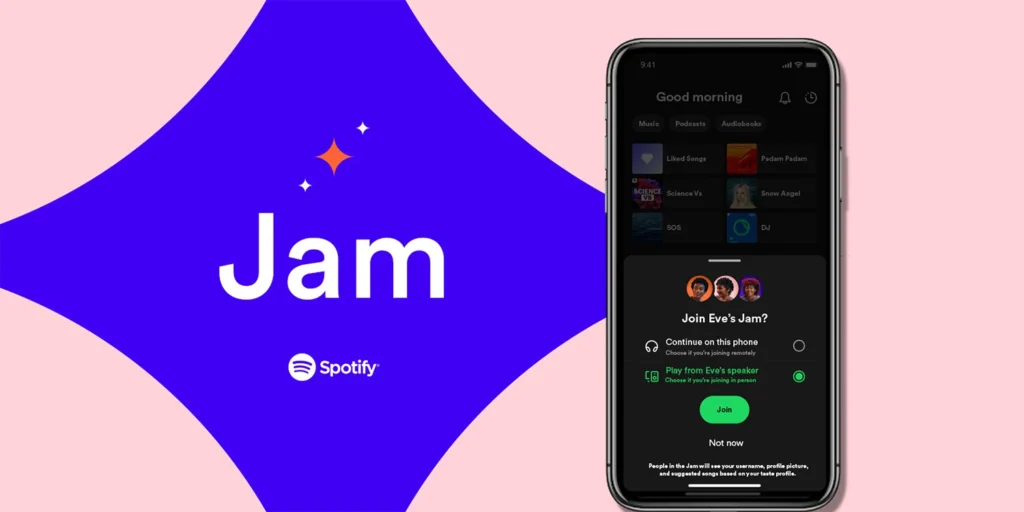
- Supports up to 32 listeners in one session
- Seamless integration with existing playlists and recommendations
- Works across phones, speakers, and smart TVs
- Real-time control where anyone can add songs
- Simple QR-based joining makes it frictionless
- Remote participants need Premium to join
- Limited strictly to Spotify’s catalog
- Can feel chaotic with too many contributors
- No advanced moderation controls for large groups
Pricing: Free, Premium $10.99/month
Platform: iOS, Android.
2. Hang.fm (formerly JQBX)
Hang.fm is a social listening platform where users act as DJs and take turns playing tracks in shared rooms. A virtual DJ room experience where users take turns playing music for a live audience.
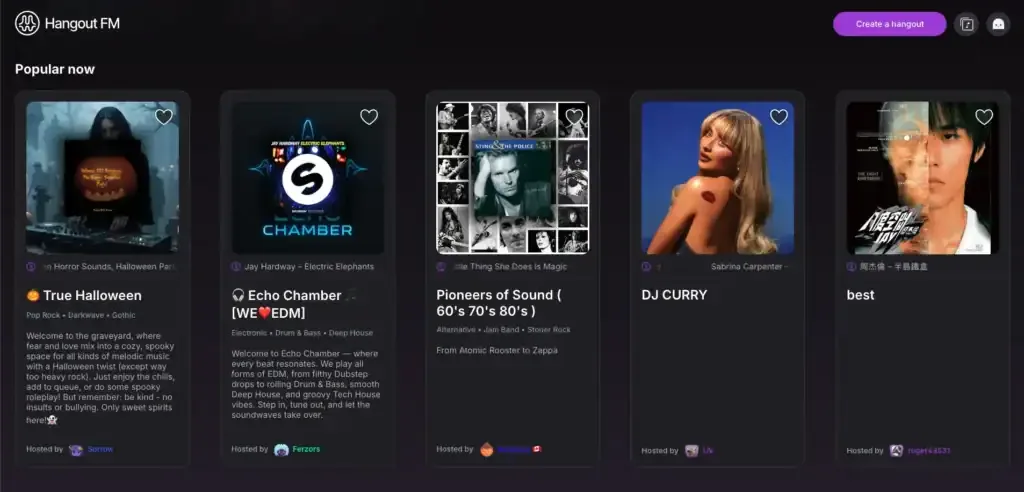
- Interactive DJ-style experience
- Live chat and voting system
- Strong community vibe
- Great for discovering new music
- Requires Spotify Premium for all users
- Smaller user base compared to mainstream apps
- Can feel niche for casual listeners
- Learning curve for first-time users
Pricing: Free, requires Spotify Premium $12.99/month
Platform: iOS, Android, Web, macOS.
3. AmpMe
AmpMe uses an “AutoSync” algorithm to achieve millisecond-precision across devices.
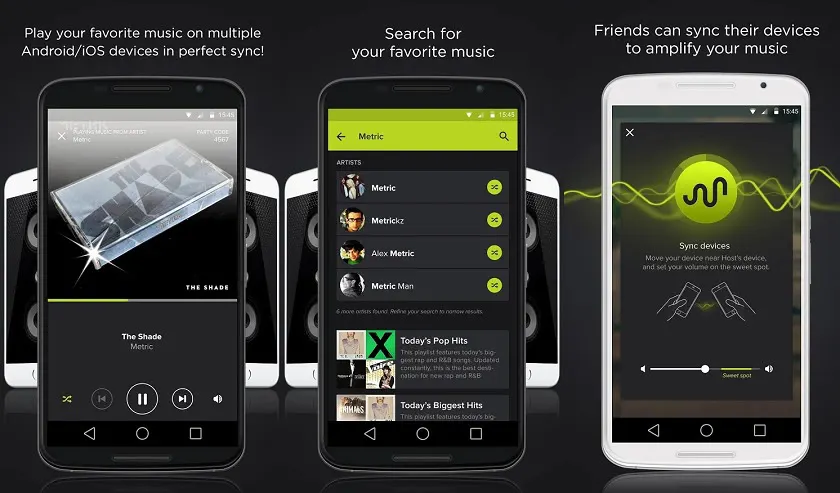
- Supports unlimited devices in one session
- Works with YouTube, SoundCloud, and more
- Extremely tight sync with minimal delay
- Great for parties and group environments
- Free version includes ads
- Limited desktop functionality
- Requires everyone to install the app
- Can drain battery quickly during long sessions
Pricing: Free, Premium ~ $9.99/month
Platform: iOS, Android.
4. MuSync
MuSync is a service-agnostic app that lets you sync playback even if users use different streaming platforms.
- Works across multiple music platforms
- No Premium required for basic use
- Easy QR-based invites
- Lightweight and simple interface
- No desktop version available
- Occasional sync drift issues
- Limited advanced features
- Smaller development ecosystem
Pricing: Free
Platform: iOS, Android.
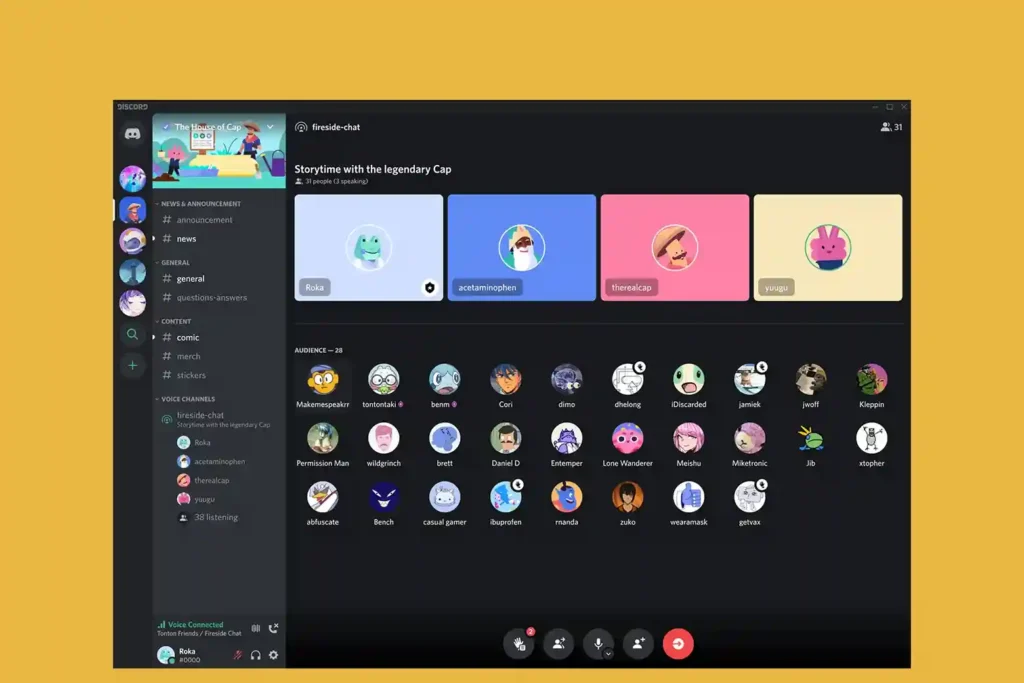
5. Discord
Discord is a community-driven platform that integrates voice chat with music streaming. Originally built for gamers, Discord has evolved into a powerful group listening tool using bots and voice channels.
- Completely free core experience
- Low-latency voice streaming
- Huge ecosystem of music bots
- Great for communities and friend groups
- Music bots often get taken down due to copyright
- Setup can be confusing for beginners
- No native music sync feature
- Audio quality depends on server settings
Pricing: Free, Nitro $9.99/month
Platform: iOS, Android, Desktop.
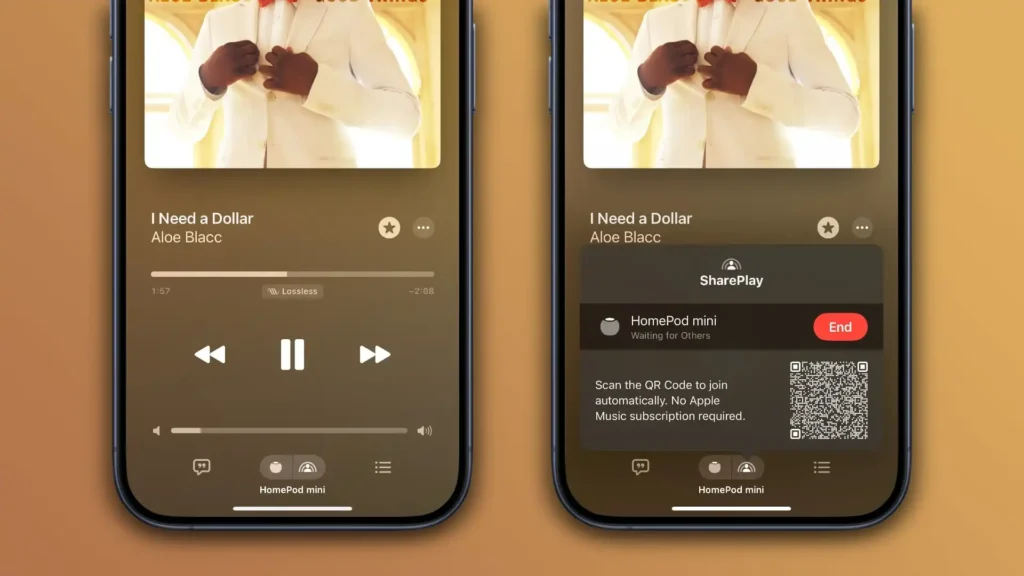
6. Apple Music SharePlay
Apple Music Shareplay is a native feature that integrates perfectly with FaceTime calls for Apple enthusiasts.
- Deep integration with the Apple ecosystem
- High-quality audio, including lossless
- Automatic volume balancing during calls
- No additional setup required
- Only works within Apple devices
- Requires an Apple Music subscription
- Limited flexibility outside FaceTime
- Not ideal for large groups
Pricing: $10.99/month
Platform: iOS, Android.
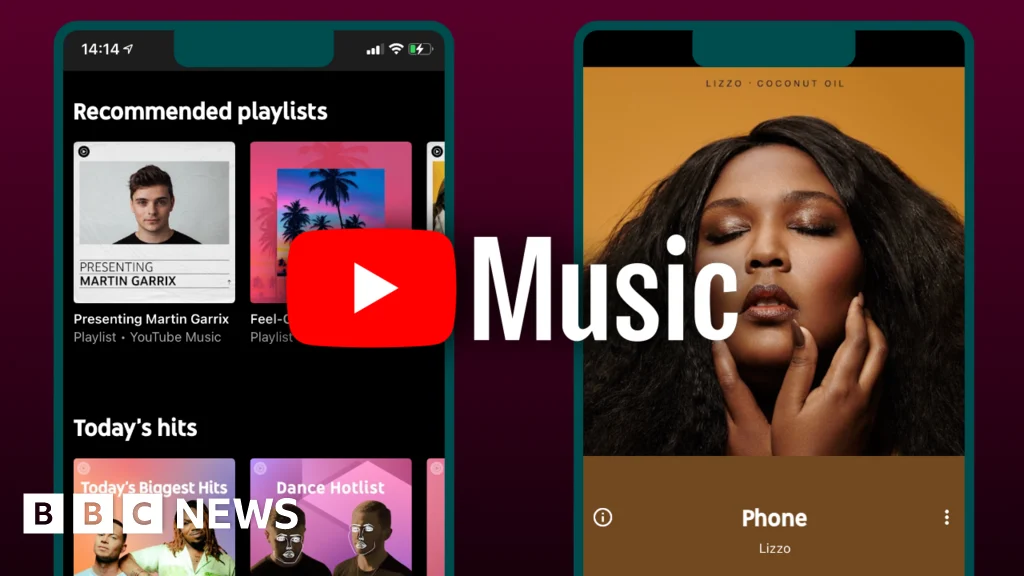
7. YouTube Music
YouTube Music is a massive library of music and videos with collaborative features.
- Massive library including live and rare tracks
- Collaborative playlists
- Free tier available
- Strong recommendation system
- No native real-time sync feature
- Background play requires Premium
- Audio quality is not lossless
- Ads in the free version
Pricing: Free, Premium $10.99/month
Platform: iOS, Android.
8. Rave
Rave is a social streaming app that allows you to sync both music and video content.
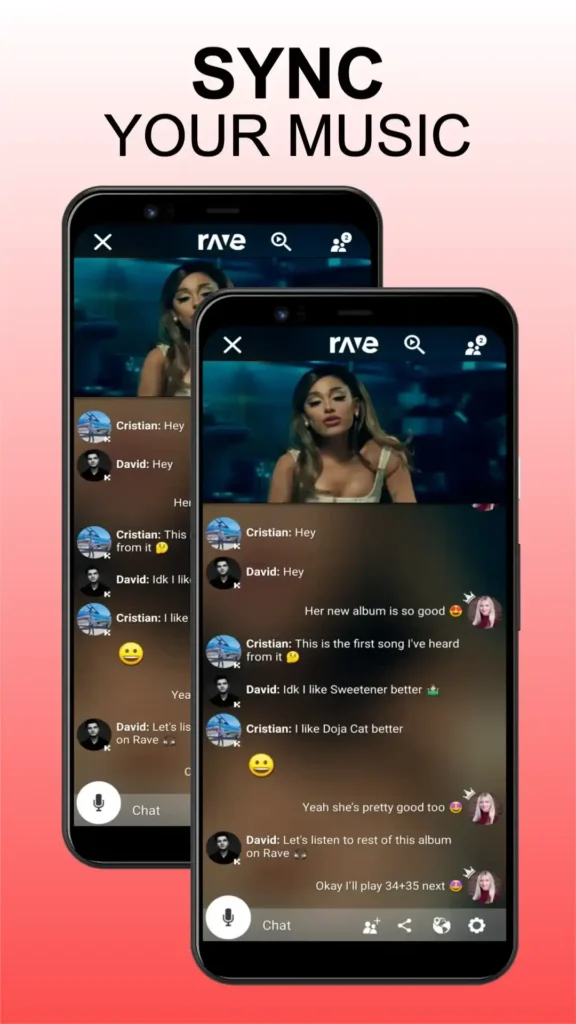
- Supports Netflix, Spotify, and YouTube
- Built-in chat for interaction
- Great for long-distance groups
- Multi-content syncing
- Requires separate subscriptions for services
- Ads in the free version
- The interface can feel cluttered
- Occasional sync lag
Pricing: Free, Premium ~ $4.99/month
Platform: iOS, Android.
9. Amazon Music Listening Party
Amazon Music Listening Party is a built-in feature for Amazon subscribers to host intimate sessions for up to 10 people.
- Integrated directly into Amazon Music
- Supports up to 10 listeners
- Simple and easy to host
- Includes chat functionality
- Requires an Amazon Music subscription
- Limited participant count
- Desktop controls are restricted
- Fewer social features compared to competitors
Pricing: $10.99/month
Platform: iOS, Android.
10. SoundSeeder
SoundSeeder is a specialized app designed to turn multiple devices into a multi-room speaker system.

- Perfect for local group listening
- Supports internet radio and local files
- Strong sync for nearby devices
- Good for home setups
- Android-only support
- Not designed for remote listening
- Limited streaming service integration
- Outdated interface
Pricing: Free, Premium ~ $4.99 (one-time)
Platform: Android.
11. Telegram Voice Chats
Telegram is a messaging giant that supports massive audio broadcasts for huge communities.
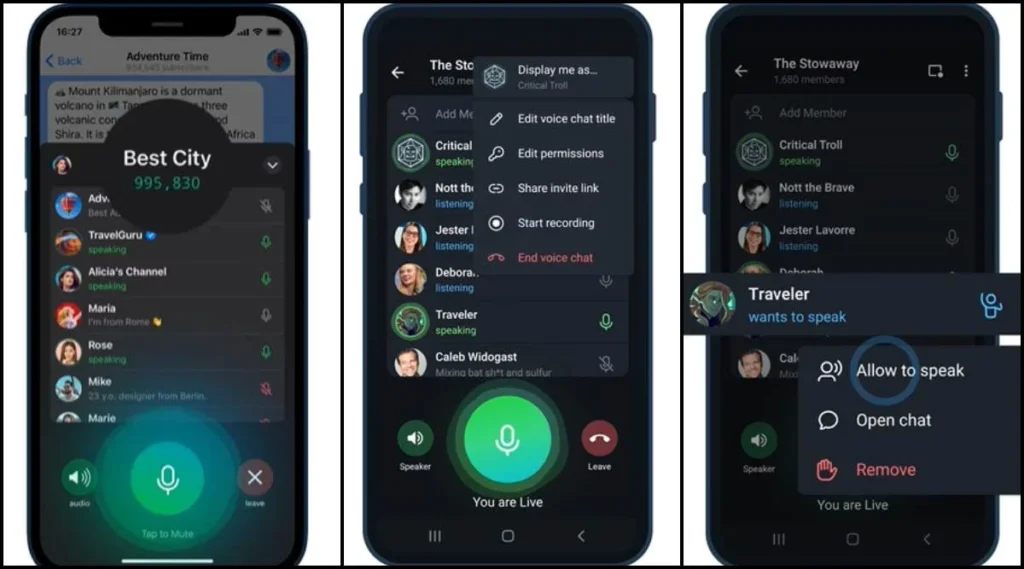
- Supports massive audiences
- Encrypted communication
- Free to use
- Good for community broadcasts
- No true music sync feature
- Requires manual setup
- Audio shared via streams, not native playback
- Not music-focused
Pricing: Free
Platform: iOS, Android.
12. Twitch
Twitch is a live-streaming platform ideal for DJs and artists to play for a global crowd.
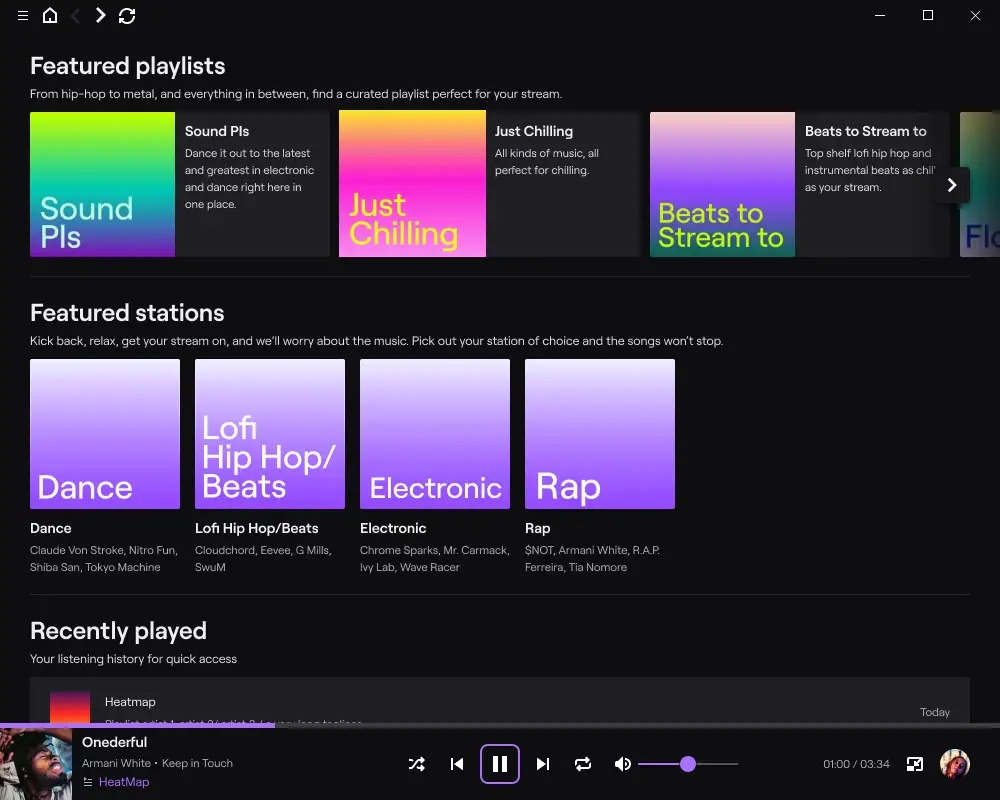
- Real-time interaction with chat
- Great for live performances
- Massive audience reach
- Strong community engagement
- No control over playback for listeners
- Not designed for private sessions
- Copyright restrictions apply
- Requires a stable internet
Pricing: Free, Subscriptions vary (~$4.99/month US)
Platform: iOS, Android, Web.
13. SoundBounce
SoundBounce lightweight, browser-based solution for Spotify users who want simplicity.

- No installation required
- Works with free Spotify accounts
- Lightweight and fast
- Easy to use
- Spotify-only compatibility
- No mobile app
- Limited features
- Depends on browser stability
Pricing: Free (Spotify Premium optional $10.99/month)
Platform: Web only
How to Listen to Music Together: A Beginner’s Guide
Starting a synchronized session is easier than ever, but it helps to know the “expert” shortcuts. Follow these seven steps to get your group connected.
- Download the App: Everyone in the group must install the selected app on their compatible device to ensure the sync works correctly.
- Sign In: Open the app and log in with your music service credentials, such as Spotify or Apple Music, to access your library.
- Create a Session: Tap the share or session button to generate a unique code, link, or QR code for your friends.
- Invite Friends: Send the generated link via text or have friends scan your screen directly if they are nearby.
- Grant Permissions: Don’t be alarmed if your phone asks for Bluetooth, microphone, or notification access: the app needs these to find your friends’ devices and keep the stream stable.
For better audio performance, check streaming quality and compatibility using Bluetooth codec details, especially if you are using wireless headphones or speakers.
- Start Playback: Select a song or playlist to begin streaming synchronized audio to all connected devices instantly.
- Manage the Queue: Add new tracks or give guests control to let everyone contribute to the shared vibe of the session.
If you are building a full setup, make sure your apps work smoothly with smart audio devices like speakers or home systems.
How to listen to music together on Spotify
You can listen to music together on Spotify by using the Jam feature, which is the platform’s flagship tool for social listening. This feature allows a host to create a shared session where up to 32 participants can add songs to a real-time queue.
To start, tap the “Device” icon located at the bottom left of your “Now Playing” screen and select “Start a Jam.” You can then share a link or a QR code with your friends. While free users can join a Jam in person if they are on the same Wi-Fi, remote participants must have a Spotify Premium subscription to join the session from a different location.
- Supports up to 32 participants at once.
- Works across phones, cars, smart speakers, and TVs
- Offers group recommendations based on the combined tastes of all listeners
- Remote joining is restricted to Premium subscribers
- Participants are locked into the Spotify ecosystem
How to listen to music together for free
To listen to music together without a paid subscription, Discord is the most reliable tool available. By using its free music bot system, groups can stream audio from various free sources directly into a voice channel.
Other excellent free options include AmpMe and Watch2Gether. AmpMe offers a free tier supported by ads that allows for unlimited device syncing. Watch2Gether is a web-based model that requires no account or registration, making it the perfect budget-friendly hangout for groups using YouTube’s massive catalog.
How to listen to music together remotely
Technology now allows you to listen to music together remotely by coordinating playback timestamps through cloud-based synchronization. This process typically keeps audio latency between 100 and 500 milliseconds, ensuring your experience is virtually seamless.
Apps like Rave and MuSync are specifically built for long-distance coordination. These platforms handle the technical heavy lifting of matching playback positions across different networks.
This allows couples and friends in different cities to enjoy a unified listening experience without the frustration of manual “one, two, three, play” countdowns.
Best Free Apps to Listen to Music Together
If you are looking to sync up without everyone paying for a subscription, these apps are your best bet:
- Discord: Use music bots like Hydra or Jockie Music to stream audio for free in any voice channel.
- AmpMe (Free Tier): Sync unlimited devices with the ad-supported version of the mobile app.
- Audiomack: A fantastic free option for discovering new artists and sharing music without a mandatory subscription.
- SoundCloud: Many sync apps allow you to stream SoundCloud’s massive free library of remixes and underground tracks.
- Watch2Gether: A web-based tool that uses YouTube’s free catalog with no registration or accounts needed.
Conclusion
Music hits different when it’s shared. One song, one moment, and all of a sudden, you feel much closer to someone else. Whether you are finding something new or playing a favorite on repeat, these listening applications transform simple songs into shared experiences.
Feeling connected in real time is more important than simply streaming music. You can participate in a shared experience by simultaneously pressing play, regardless of where you are in the world. So choose a song, get into a session, and make your next listen truly memorable.
FAQs
1) How to listen to music together?
Download a synchronized app like AmpMe or Spotify, create a shared session, and send an invite link to your friends. These apps use cloud technology to ensure the music plays on all devices at the exact same time.
2) How to listen to music together on Spotify?
Tap the “Device” icon at the bottom left of the app and select “Start a Jam” to create a session. You can then share a link or QR code to allow up to 32 friends to join and manage the queue together.
3) How to listen to music together on Discord?
Join a voice channel and use the screen share feature or add a music bot to broadcast audio. Participants can then listen along in real-time while using the low-latency voice chat.
4) How to listen to music together on YouTube Music?
Use the Watch2Gether website as a workaround since YouTube Music lacks native real-time sync. Create a private room and paste YouTube links to watch and listen in perfect sync with your group.
5) How to listen to music together remotely?
Remote listening is possible through apps like Rave or MuSync, which coordinate playback timestamps over the internet. These apps typically maintain sync with less than 500 milliseconds of latency across different locations.
6) An app where you can listen to music together?
Several apps offer this feature, including Spotify Jam, Discord, and AmpMe, each catering to different needs. Your choice depends on whether your group prefers a specific streaming service or needs a free, cross-platform solution.